Power & internet · Anytime
Starlink: Setup, Stowing & Wi-Fi
The cabin has Starlink internet. Here's how to get on the Wi-Fi, where to plug in for a solid connection on work calls, and how to stow and unstow the dish.
Download opens the video on Vimeo, where you can pick a smaller file size to save space on your phone.
Before you start
- Download the Starlink app and log in before you leave home. Once you're at the cabin there's no internet to log in with.
Good to know
- Wi-Fi network: Starlink. No password.
- The router is in the Lodge. The closer you are to it, the better the signal.
- Ron and Luke are logged into the app and have the account info.
Step by step
6 steps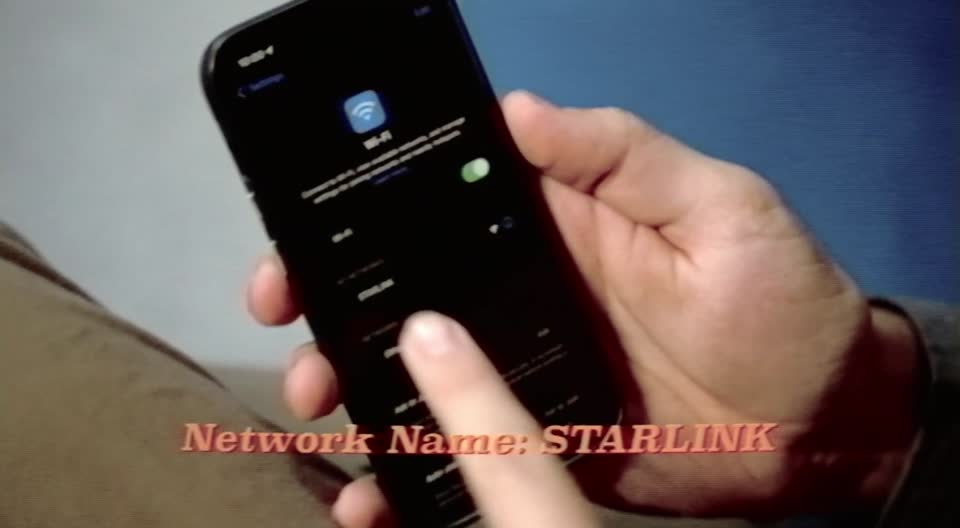
Join the Wi-Fi
On your phone or laptop, pick the network called Starlink. There's no password.
For calls, plug in
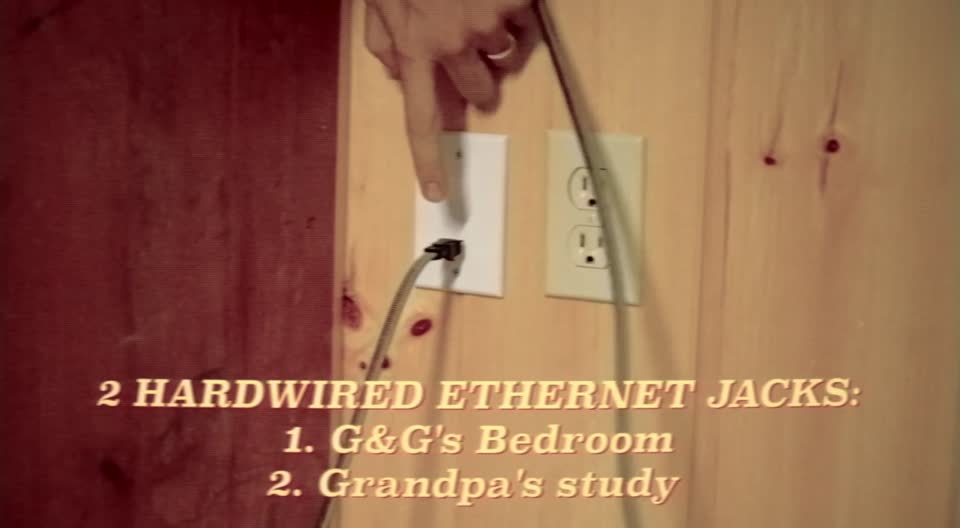
There are two wired Ethernet jacks: one in Grandma and Grandpa's bedroom, low by the window, and one in Grandpa's study under the window next to the desk. Use them for Zoom calls or anything that needs a steady connection.
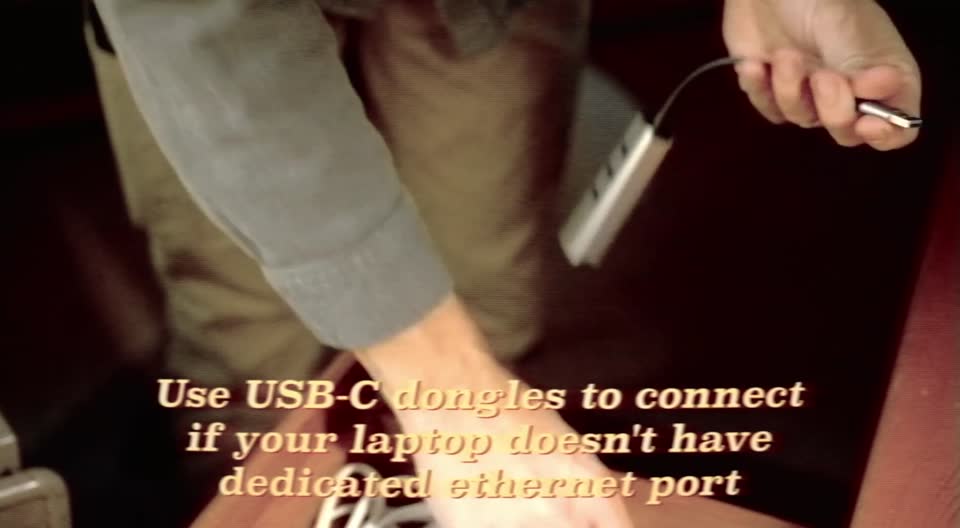
Borrow a USB-C adapter if you need one
If your laptop doesn't have an Ethernet port, there are USB-C dongles in Grandpa's desk.
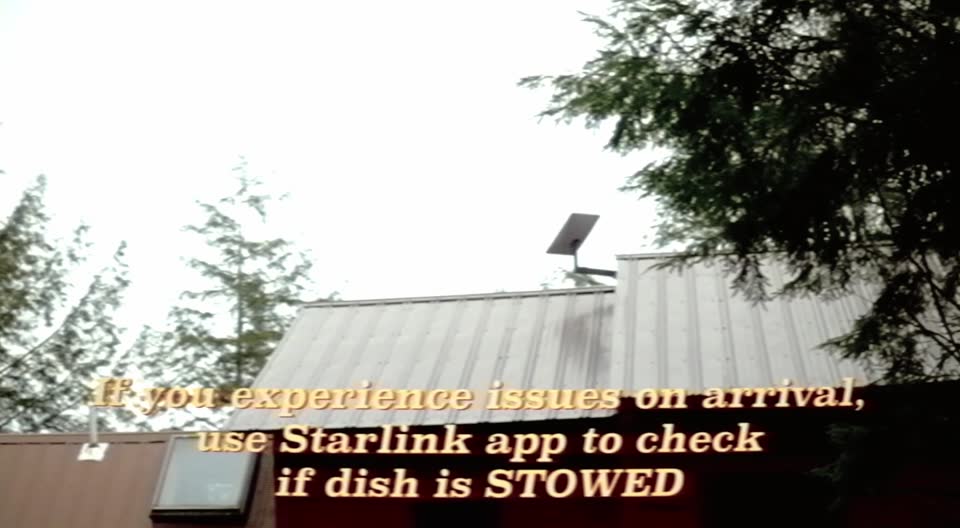
Not connecting? Check if the dish is stowed
Open the Starlink app. In the off-season the dish is stowed (tilted straight up), and it won't connect until it's unstowed. The app may warn about obstructions; that's normal in the woods.
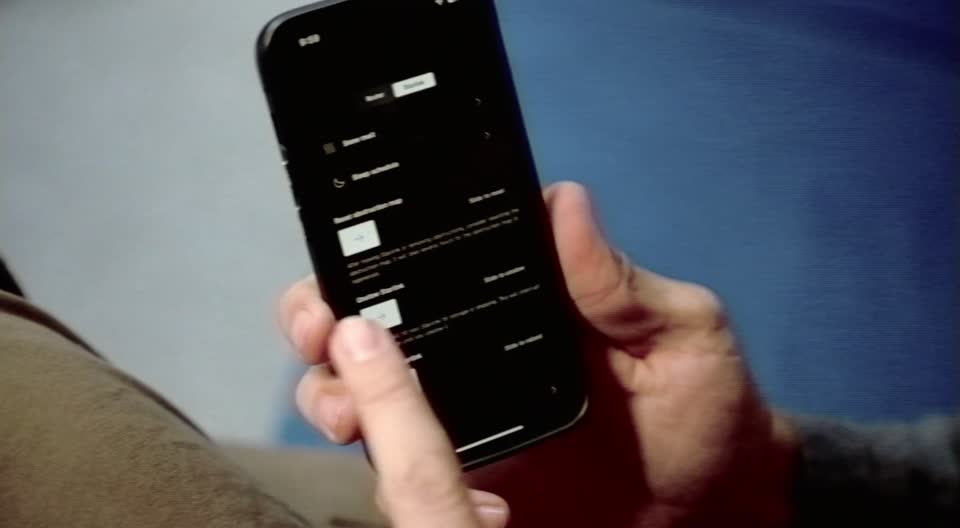
Unstow the dish
In the app, go to Settings, then the Starlink tab, and swipe right on Stow Starlink to reverse it. You have to be in Bluetooth range of the dish.
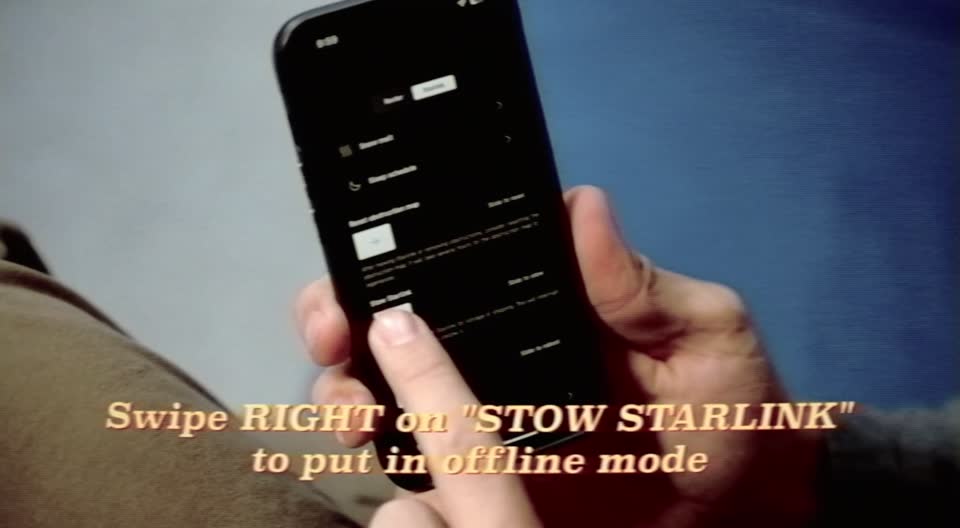
When you close up, stow it
Before you leave for the season, use the same Settings screen and swipe right on Stow Starlink. The dish tilts vertical for the winter.
Tips
- The Starlink settings also include snow melt and a sleep schedule if you ever need them.